
Welcome to Day 8 of our HTML series!
We have covered headings, paragraphs, and emphasis. Your content is now structured and readable. But sometimes, a paragraph just isn’t enough. If you are writing a “Top 10” guide, a recipe, a set of instructions, or listing the features of your new product, you need a List.
Human brains love lists. They are easy to scan, bite-sized, and psychologically satisfying to read. Google loves lists even more.
Have you ever searched for “How to tie a tie” or “Best web hosting features” and seen a list displayed right there at the top of Google, before the first search result? That is called a Featured Snippet (or “Position Zero”). It is the holy grail of SEO.
But here is the secret: Google can only do this if you code your list correctly. If you just type “1. Step One” manually inside a paragraph, Google doesn’t know it’s a list. It just sees a jumble of text.
Today, we are going to learn the three tags that unlock this SEO superpower: <ul>, <ol>, and <li>. By the end of this article, you will never type a manual number again.
The Analogy: The Shopping List vs. The Recipe 🧾
To understand which list to use, you only need to ask yourself one simple question: Does the order matter?
1. The Unordered List (<ul>) = The Shopping List
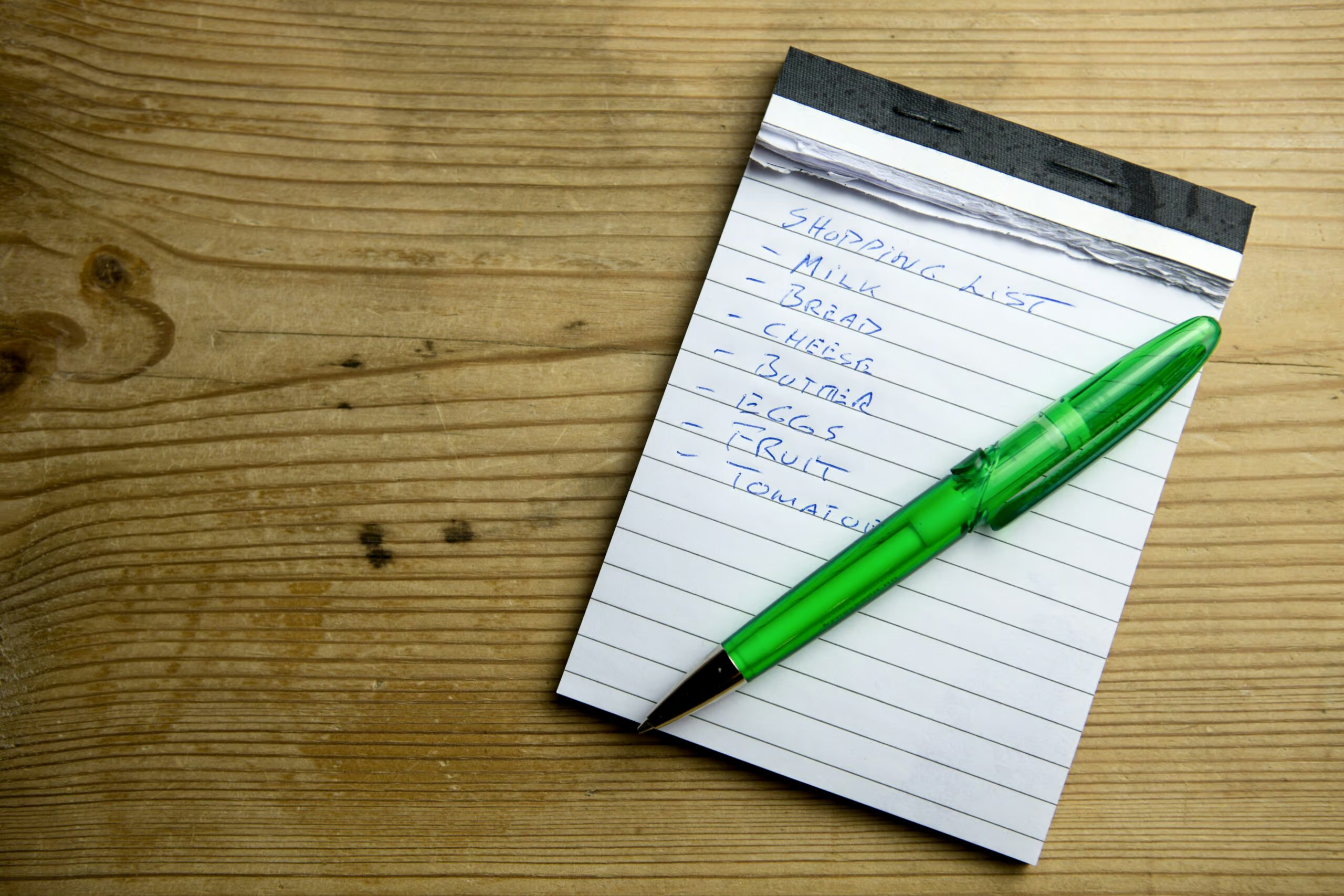
Imagine you are writing a shopping list for your partner: Milk, Bread, Eggs, Coffee.
- The Logic: Does it matter if they buy the eggs before the milk? No. The outcome is the same. The sequence is irrelevant.
- The Visual: These are Bullet Points (usually black dots).
- The Code:
<ul>(Unordered List).
2. The Ordered List (<ol>) = The Recipe
Imagine you are writing a recipe for a cake: 1. Crack eggs. 2. Whisk. 3. Fry.
- The Logic: Does the order matter? Yes, absolutely. You cannot fry the eggs before you crack them. If you mix up step 1 and step 3, you ruin the breakfast. The sequence is vital.
- The Visual: These are Numbers (1, 2, 3) or Letters (A, B, C).
- The Code:
<ol>(Ordered List).
The Business Rule:
- Use
<ol>for “How-To” guides, Steps, Rankings (“Top 10”), or Priorities. - Use
<ul>for Features, Benefits, Ingredients, or general options.
The Grammar: The “Sandwich” Returns 🥪
Lists are unique in HTML because they require Nesting (the Russian Doll concept we learned in Day 2). You cannot just use a list tag on its own.
You need two parts:
- The Wrapper: Defines what type of list it is (
<ul>or<ol>). - The Items: The actual content (
<li>).
The Structure
Think of the Wrapper as the shopping bag, and the Items as the groceries. You can’t have loose groceries floating in space; they must be inside the bag.
- Open the Bag:
<ul>(Start the list). - Add an Item:
<li>Milk</li>(List Item). - Add another Item:
<li>Bread</li>(List Item). - Close the Bag:
</ul>(End the list).
The Code:
<ul>
    <li>Fast NVMe Storage</li>
    <li>Free SSL Certificates</li>
    <li>24/7 UK Support</li>
</ul>
Why <li>?
<li> stands for List Item. It is the only tag allowed directly inside a <ul> or <ol>.
Common Mistake: You cannot put a paragraph <p> directly inside a <ul>. It must be wrapped in an <li>.
- Wrong:
<ul> <p>Milk</p> </ul> - Right:
<ul> <li>Milk</li> </ul>
The “Manual Numbering” Crime 🚨
This is the most common mistake we see on DIY business websites, and it hurts your SEO and Accessibility.
The Scenario:
You want a numbered list. Instead of clicking the “List” button in the WordPress toolbar, you type it manually inside a standard paragraph block.
The Bad Code:
<p>1. Open the box.</p>
<p>2. Take out the product.</p>
<p>3. Plug it in.</p>
Why this fails:
- SEO (Google is Blind): Google doesn’t see a relationship between these lines. It just sees three separate, unconnected sentences. It won’t give you the Featured Snippet because it doesn’t know it’s a step-by-step guide.
- Accessibility (The Screen Reader Fail): A blind user’s screen reader won’t say “List with 3 items.” Instead, it might read it literally as “Number one dot Open the box.” It sounds robotic and confusing.
- Visual Formatting: If “Step 1” is two lines long, the second line will wrap underneath the number “1”, looking messy. A real HTML list automatically indents the text so the numbers hang nicely to the left.
The Fix:
Always use the proper List block in WordPress (or ol/ul in code). Let the browser handle the numbering. If you delete item #2, the browser automatically re-numbers item #3 to be the new #2. Magic!
The SEO Secret: Winning “Position Zero” 🏆
We mentioned Featured Snippets earlier. Here is the specific strategy to target them.
Let’s say you want to rank for the phrase “How to set up a business email.”
- Write a clear H2: Use the exact question.
<h2>How to set up business email in 5 steps</h2> - Use an
<ol>: Because it is a step-by-step process, use an Ordered List. - Be Concise: Keep each
<li>short and punchy. Google likes bite-sized answers.
The Result:
When Google crawls your page, it sees the semantic connection between the question (the H2) and the answer (the Ordered List). It grabs that chunk of code and displays it right at the top of the search results. You get maximum visibility, often beating competitors who have stronger domain authority but messy code.
Styling Lists: Beyond the Boring Bullet 🎨
Standard HTML bullets are boring black dots.
Standard HTML numbers are boring Times New Roman numbers.
As a business owner, you might want Green Checkmarks (for pros) or Red Crosses (for cons).
Do not do this manually.
Do not paste a generic “✅” emoji into your text.
- Why? It looks amateurish, and screen readers read it out as “White Heavy Check Mark.” Imagine hearing that 10 times in a row!
Use GenerateBlocks:
If you use GenerateBlocks (our recommended builder), use the “Icon List” block.
- Under the hood: It still writes clean
<ul>and<li>code (so Google is happy). - Visually: It uses CSS to replace the black dot with an SVG icon (so humans are happy).
This gives you the SEO benefit of a list with the visual appeal of a design element.
Advanced: Nesting Lists (Lists inside Lists) 🪆
Sometimes you need sub-points. A list within a list.
- Fruit
- Apples
- Pears
- Vegetables
This is done by putting a new <ul> inside an existing <li>. It is like putting a smaller bag inside your main shopping bag.
The Code:
<ul>
    <li>Fruit
        <ul> <!-- The nested list starts here -->
            <li>Apples</li>
            <li>Pears</li>
        </ul> <!-- The nested list ends here -->
    </li>
    <li>Vegetables</li>
</ul>
Why care?
You might not write nested lists often in your blog posts, but this is exactly how Navigation Menus work. Your website menu is just a giant nested list of links.
<ul>= The Main Menu bar.<li>= About Us.<li>= Services (Parent Item).<ul>(The Drop-down menu).<li>Plumbing</li>
If you ever right-click and “Inspect” your menu, you will see this exact structure. It is the backbone of web navigation.
Summary Checklist: The List Audit
Open your “Services” page right now and check your lists:
- [ ] The “Manual” Check: Did you type “1.” or “-” manually at the start of a line? If so, delete it and convert the block to a real List.
- [ ] The Logic Check: Are you using Bullet Points (
<ul>) for a step-by-step process? Switch them to Numbers (<ol>) to help the user follow the order. - [ ] The Nesting Check: If you have sub-points, are they properly nested or are you just using indents on a paragraph?
- [ ] The Style Check: Are you using boring dots? Try GenerateBlocks to swap them for branded checkmarks without breaking the code.
Lists are the unsung heroes of content. They break up the wall of text, guide the eye, and feed Google exactly what it wants.
📅 Coming Up Tomorrow…
We have text. We have structure. We have lists.
But the web is basically just a series of boxes.
Why do developers obsess over <div> tags? And why should you use <header> instead of a div?
Join us for Divitis: Why You Should Use <header>, <footer>, and <main>.